


In order to increase WordPress memory limit follow these steps:
1. Go to cPanel > Files section > File manager menu:

2. Navigate to the root folder of your domain (by default, it is public_html for the main domain and addondomain.tld for the addon domains). Select wp-config.php file and click Edit:
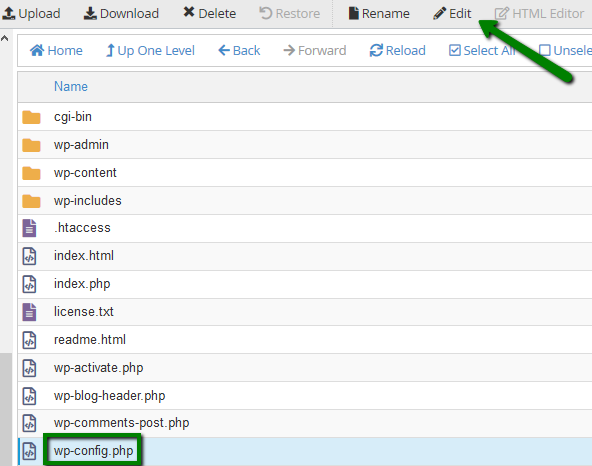
Next, you need to paste the following line in the wp-config.php file just before the one that says, That's all, stop editing! Happy blogging.
This line requests WordPress to allocate up to 512MB of PHP memory.
However, the final limit depends on your server’s configuration. If your host enforces a lower cap, this change may not take effect.
For more details, you can see our step-by-step guide on how to find and edit the wp-config.php file.
Once you are done, you need to save your changes and upload your wp-config.php file back to your server.
You can now visit your WordPress site, and the memory exhausted error should have disappeared.
Option 2: Editing the .htaccess File
The next method is to edit the .htaccess file. This file is also located in the WordPress website’s root folder.
Here, you need to paste the following code before the line that says #END WORDPRESS.
php_value memory_limit 512M
Similar to the previous code, it will tell WordPress to increase the PHP memory limit to 512MB.
That said, keep in mind this method only works if your server runs Apache with mod_php. If you’re using PHP-FPM or NGINX, this method may not have any effect.
After that, simply save your changes and upload the file back to your web server. You can now open your WordPress website again to see if the memory limit error has gone.
If you can’t find the .htaccess file, you can check out our guide on why the .htaccess file may be missing and how to find it.
Option 3: Checking Your php.ini File
If the above methods don’t work, you may want to look at your php.ini file.
php.ini is a file that controls your PHP settings, including the PHP version and PHP scripts. It’s not a WordPress core file, as your hosting provider usually manages it.
You can check its code to see your PHP memory usage limit. For more details, you can see our guide on how to find and edit the php.ini file.
However, because this is an advanced method, we recommend contacting your web hosting provider’s support team instead to see if they can increase the WordPress memory limit manually. Otherwise, this can result in further errors.
Plus, some shared hosting plans don’t allow users to access or modify the php.ini file.
You can read our guide on how to properly ask for WordPress support for more information.
NOTE: it is also possible to change WP_MEMORY_LIMIT by going to wp-includes folder of the installation and editing default-constants.php file.
That's it!
