


Cloning a WordPress website is a useful process when you want to create a duplicate of your site for testing, development, or migration purposes.
cPanel, a popular web hosting control panel, makes this process straightforward, especially when using tools like WordPress Manager by Softaculous. In this guide, we’ll walk you through the steps to clone a WordPress site on cPanel.
Step 1: Log in to Your cPanel
- Open your web browser and navigate to your cPanel login page (usually
https://yourdomain.com/cpanel). - Enter your username and password to log in.
Step 2: Access WordPress Manager by Softaculous
- Once logged into cPanel, scroll down to the Software section.
- Locate and click on WordPress Manager by Softaculous.
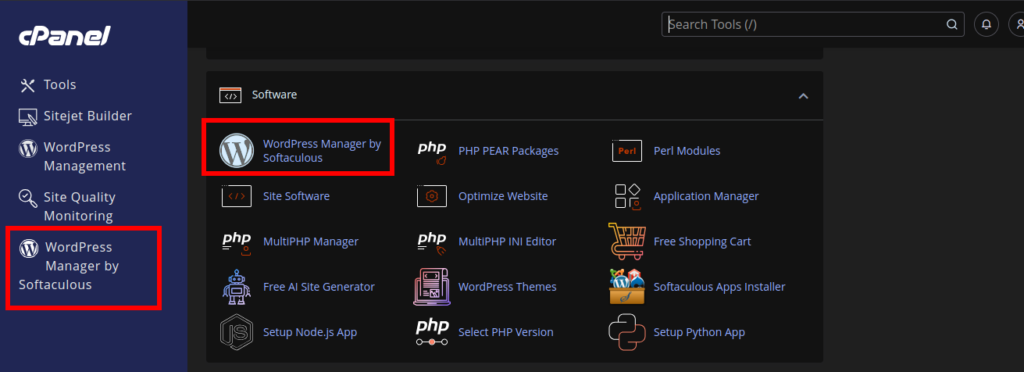
Step 3: Locate the Domain You Wish to Clone
- In the WordPress Manager, you’ll see a list of all your WordPress installations.
- Find the domain or installation you want to clone.
Step 4: Initiate the Clone Process
- On the far right of the domain listing, click on the dropdown icon (represented by a small arrow).
- From the dropdown menu, click on the Clone button.

Click on the ‘Clone‘
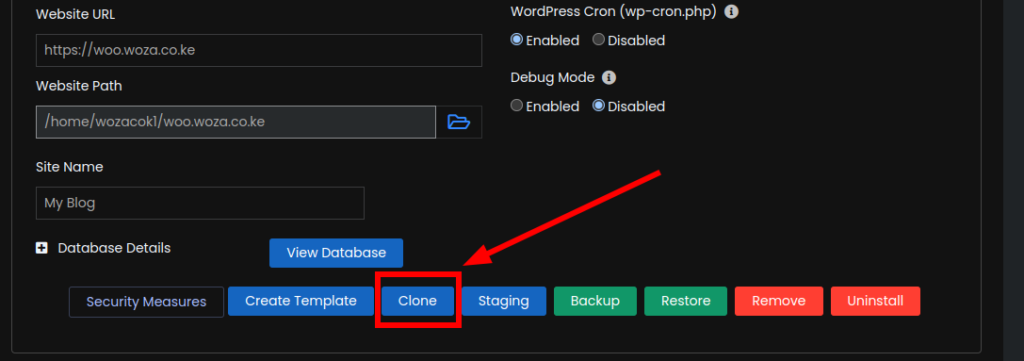
Step 5: Configure the New Clone Installation Details
- On the “Cloning WordPress” page, you’ll be prompted to enter details for the new clone:
- Choose Domain: Select the domain or subdomain where the clone will be installed.
- In Directory: Specify the directory name if you want the clone to be installed in a subfolder (leave blank for the root directory).
- Database Name: Enter a name for the new database or use the default.
- Clone Settings: Review and adjust any additional settings as needed.
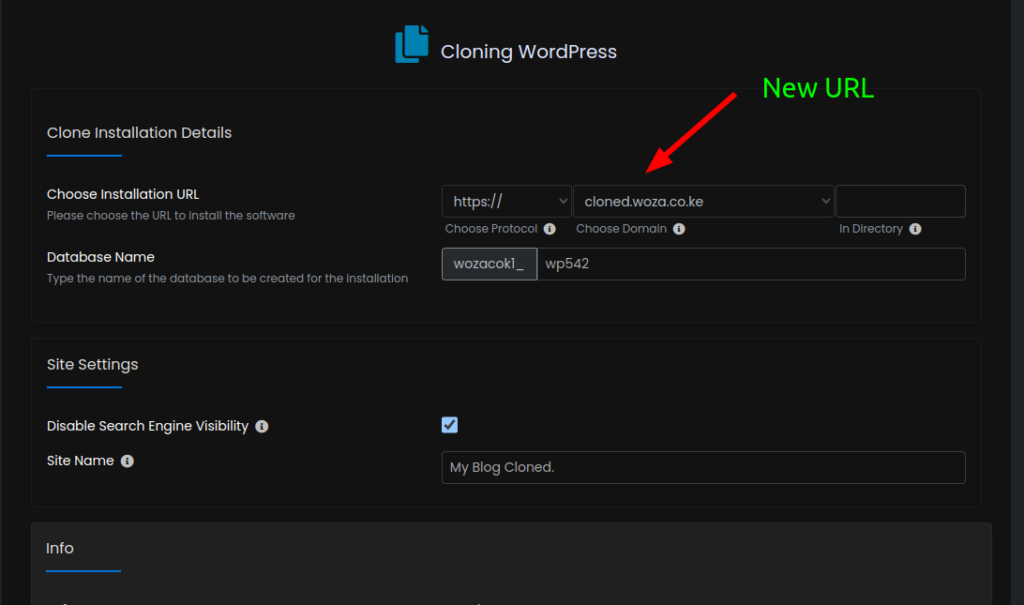
Step 6: Confirm the Information
- Scroll down and double-check all the details you’ve entered.
- Ensure that the new domain, directory, and database information are correct.
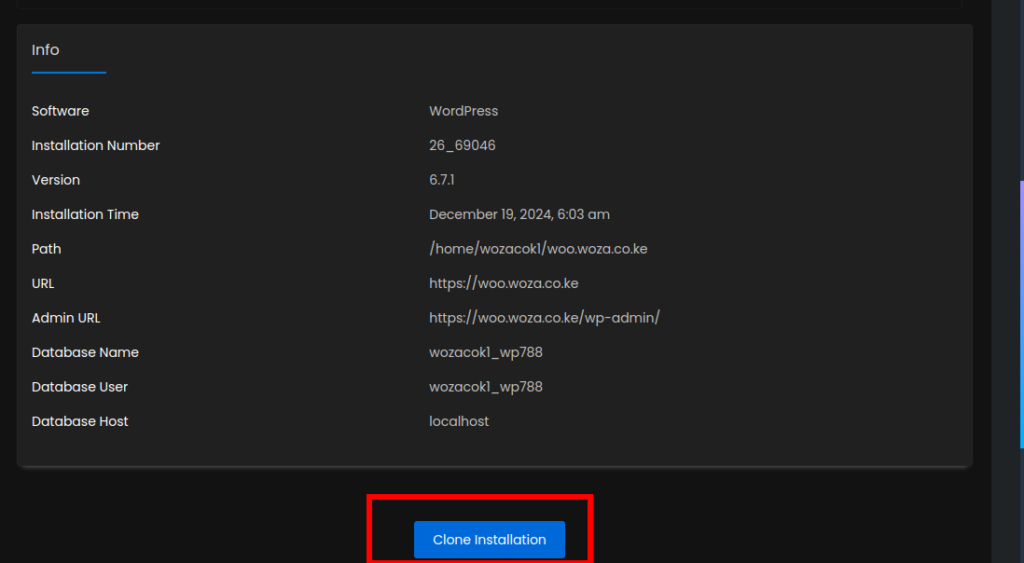
Step 7: Start the Cloning Process
- Once everything is confirmed, click on the Clone Installation button.
- The cloning process will begin, and you’ll see a progress bar indicating the status.
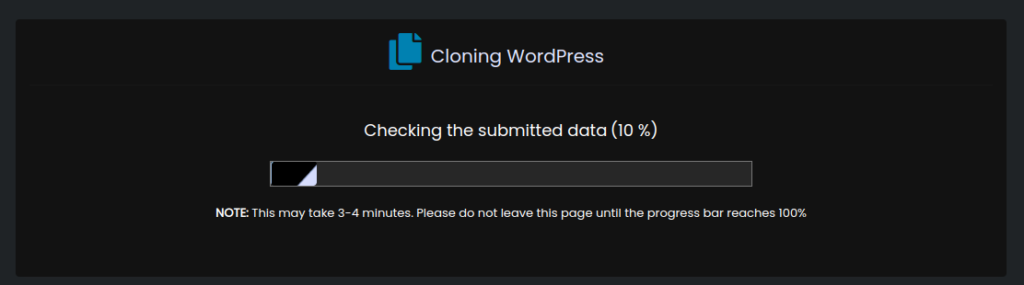
Step 8: Monitor the Progress
- Wait for the process to complete. This may take a few minutes depending on the size of your WordPress site.
- Once done, you’ll see a congratulations message confirming that the clone has been successfully created.
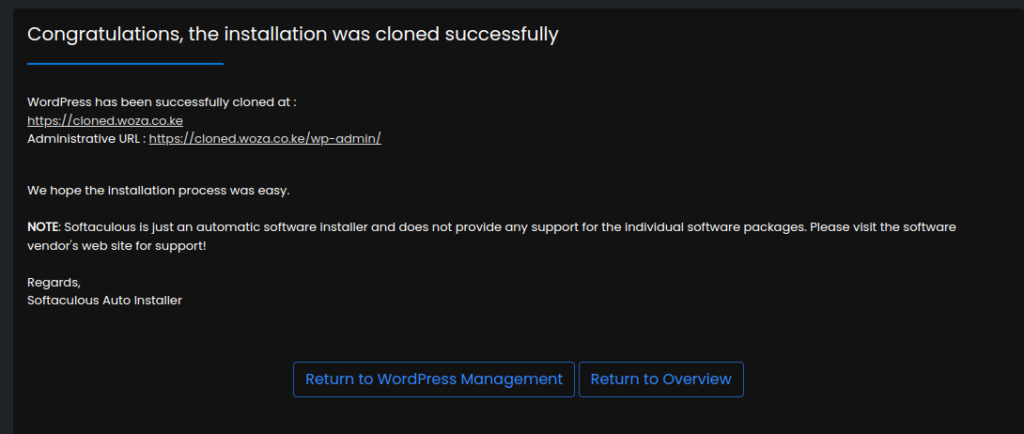
Step 9: Access the New Cloned URL
- Open a new browser tab and navigate to the URL of the cloned WordPress site.
- Verify that the site loads correctly and all functionalities are working as expected.
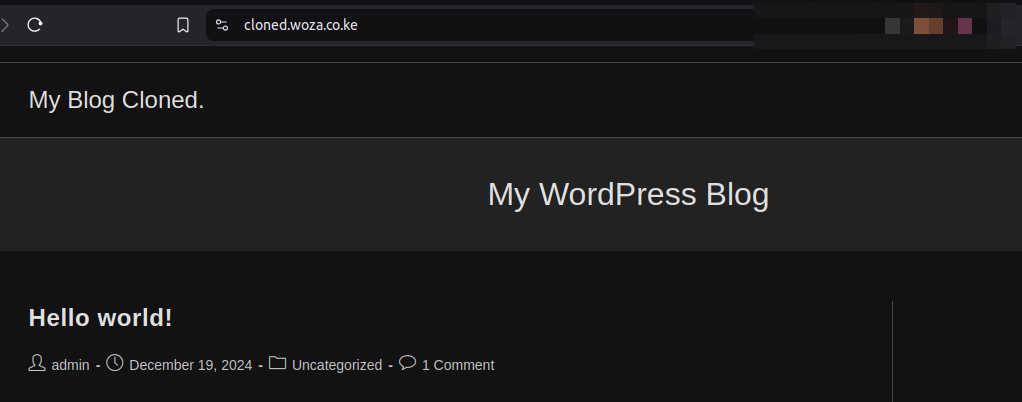
All Done!
Congratulations! You’ve successfully cloned your WordPress site using cPanel and Softaculous. You can now use the cloned site for testing, development, or any other purpose.
Tips for a Smooth Cloning Process:
- Backup Your Site: Always create a backup of your WordPress site before cloning, just in case something goes wrong.
- Check Permalinks: After cloning, go to Settings > Permalinks in your WordPress dashboard and resave the settings to ensure proper URL structure.
- Update Links: If you’re cloning to a new domain, use a search and replace tool to update any hardcoded links in your database.
Happy hosting!
